Short visual guides for every part of Fandom Shelf. Tap a video to play; scroll for the step-by-step.
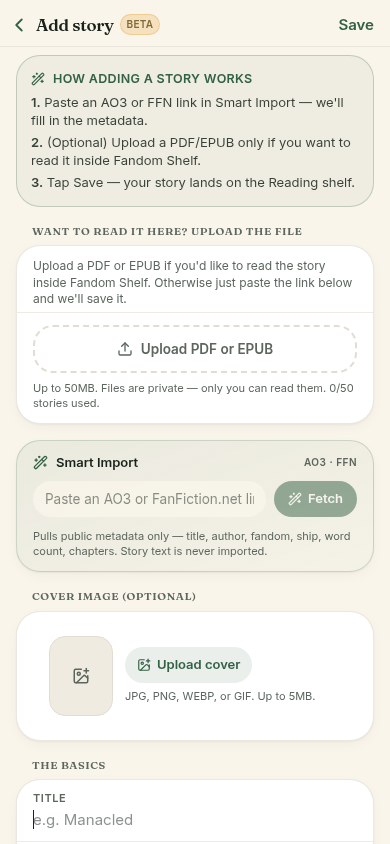
Add a fic
- Open Library and tap the + button.
- Pick a method: paste an AO3/FFN link, upload an EPUB/PDF/HTML file, or enter details manually.
- Confirm the metadata, then tap Save. Your fic lands on your shelf.
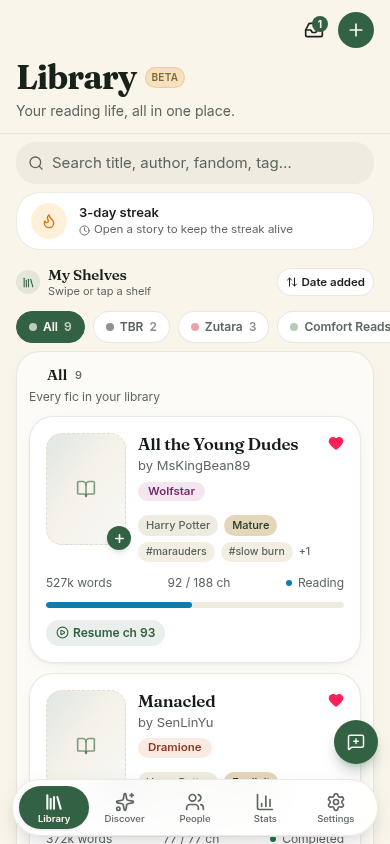
Track your reading
- Open a fic from your Library and tap Read.
- Your chapter and scroll position save automatically as you read.
- Mark complete from the fic page when you finish — your stats update right away.
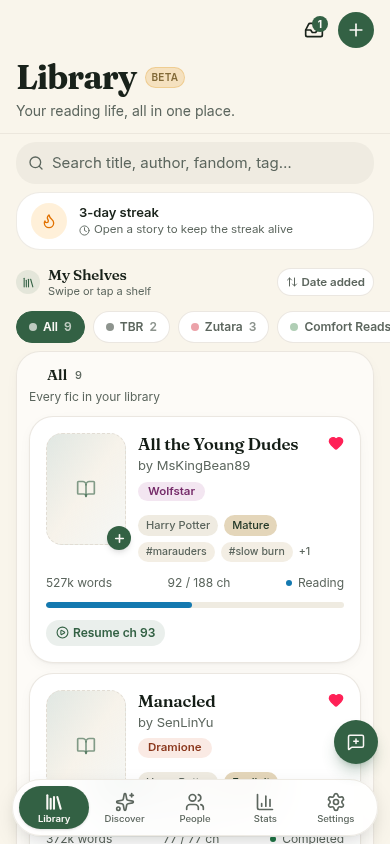
Collections & TBR
- Open Collections from the bottom tabs and tap New.
- Name your shelf, then add fics from your Library using the + on each card.
- Drop fics into the TBR queue from any fic page using the Add to TBR action.
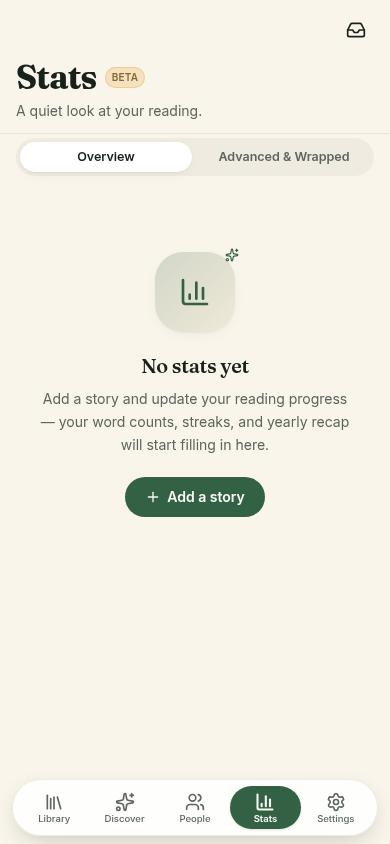
Stats & achievements
- Open the Stats tab to see words read, streaks, and milestones.
- Reading progress on in-progress fics counts toward your totals automatically.
- Pull down to refresh and check newly unlocked achievements.
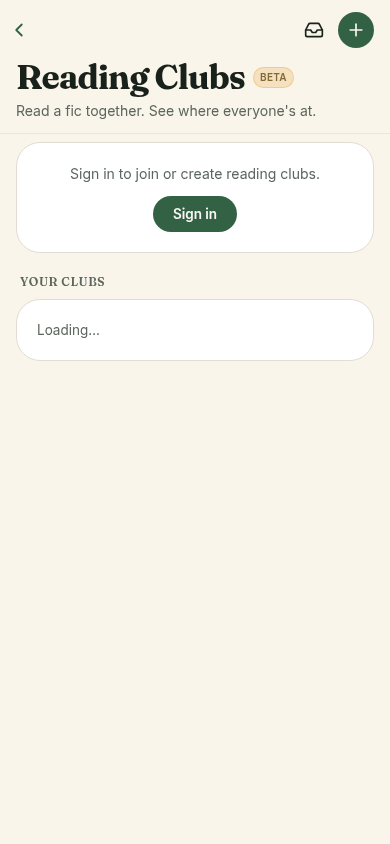
Clubs
- Open Clubs and tap New club to create one, or use Join with code.
- Invite friends with the share link from the club page.
- Pick a current read and post discussion threads inside the club.
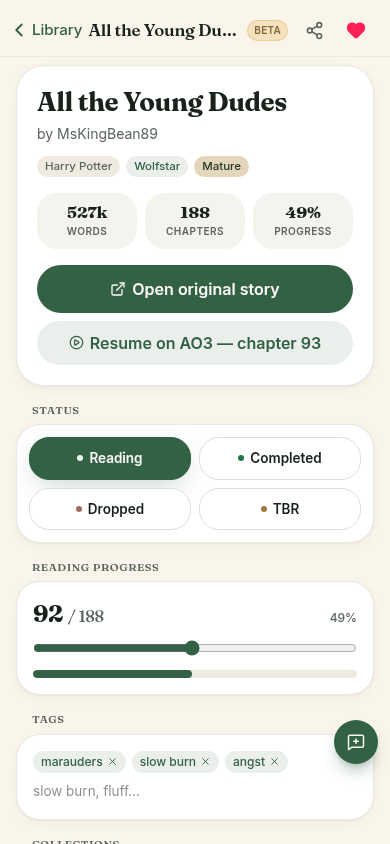
Share & recommend
- Open any fic and tap Share to copy a recommendation link.
- From your profile, set a public handle so friends can find your shelves.
- Use Find people in Settings → Social to follow other readers.
Highlights & notes
- While reading, select a passage and tap Highlight.
- Pick a color and add an optional note.
- Review and export highlights any time from Settings → Export data.
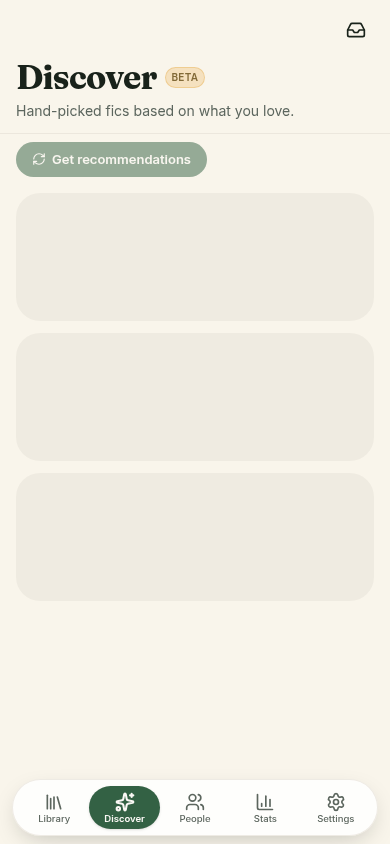
Discover
- Open the Discover tab to browse curated and trending fics.
- Tap a card to preview, then add directly to your Library or TBR.
- Filters help you narrow by fandom, length, and status.
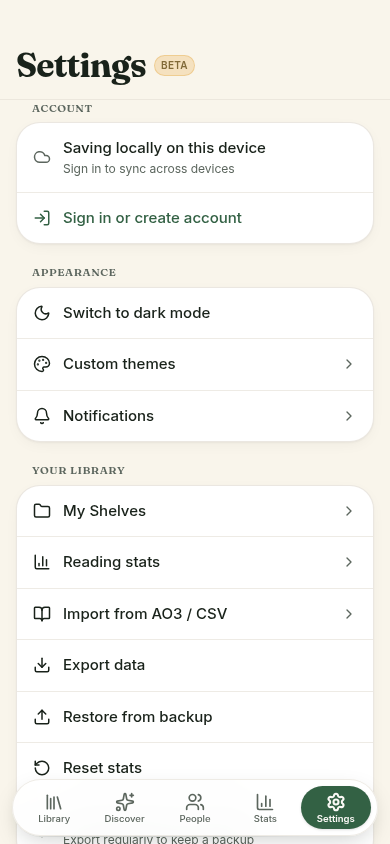
Import & export
- Settings → Export data to download your library as JSON, CSV, or PDF.
- Use the Import option in Settings to restore from a JSON backup.
- Highlights can be exported separately as JSON or CSV.
Notifications
- Open Settings → Notifications to choose what you want to be reminded about.
- Toggle reading reminders, club activity, and weekly digests.
- Email and in-app inbox can be configured independently.
Themes
- Toggle light or dark mode from Settings any time.
- In the reader, open reading settings to pick a day, sepia or night page.
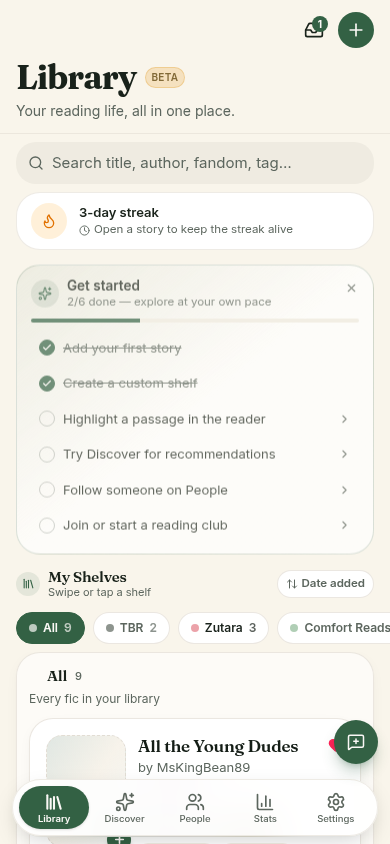
Replay onboarding
- Settings → Support → Replay first-run onboarding to see the intro again.
- Use Replay Library tour for a quick refresher on the main screen.
- Both are safe to run any time — they don't change your data.